

MultiAlphas User Guide
This guide follows one complete research session: install, prepare data, configure, generate, review the results, and export to six platforms (MultiCharts, TradingView, TradeStation, NinjaTrader, MetaTrader 4 and MetaTrader 5).
The screenshots come from the trial version and show the Traditional Chinese interface; the layout is the same in every language. The full version offers more indicator families and features, so some screens show more.
1Install
- System requirements:
- Windows 10/11, 64-bit.
- Classic runs on any graphics card.
- Reserve needs an NVIDIA GeForce GTX 10 series or newer.
- Download the installer and run it.
- Later, when a new version is available, a New version button appears at the top. One click downloads, installs and reopens MultiAlphas; there is no need to download the installer again.
2Activate your license
- The first time you open MultiAlphas, the Welcome to MultiAlphas screen appears.
- If you do not have a licence key yet, click the link to get a free trial key at the MultiAlphas member centre.
- Paste the trial key or licence key into the Licence key field and click Activate.
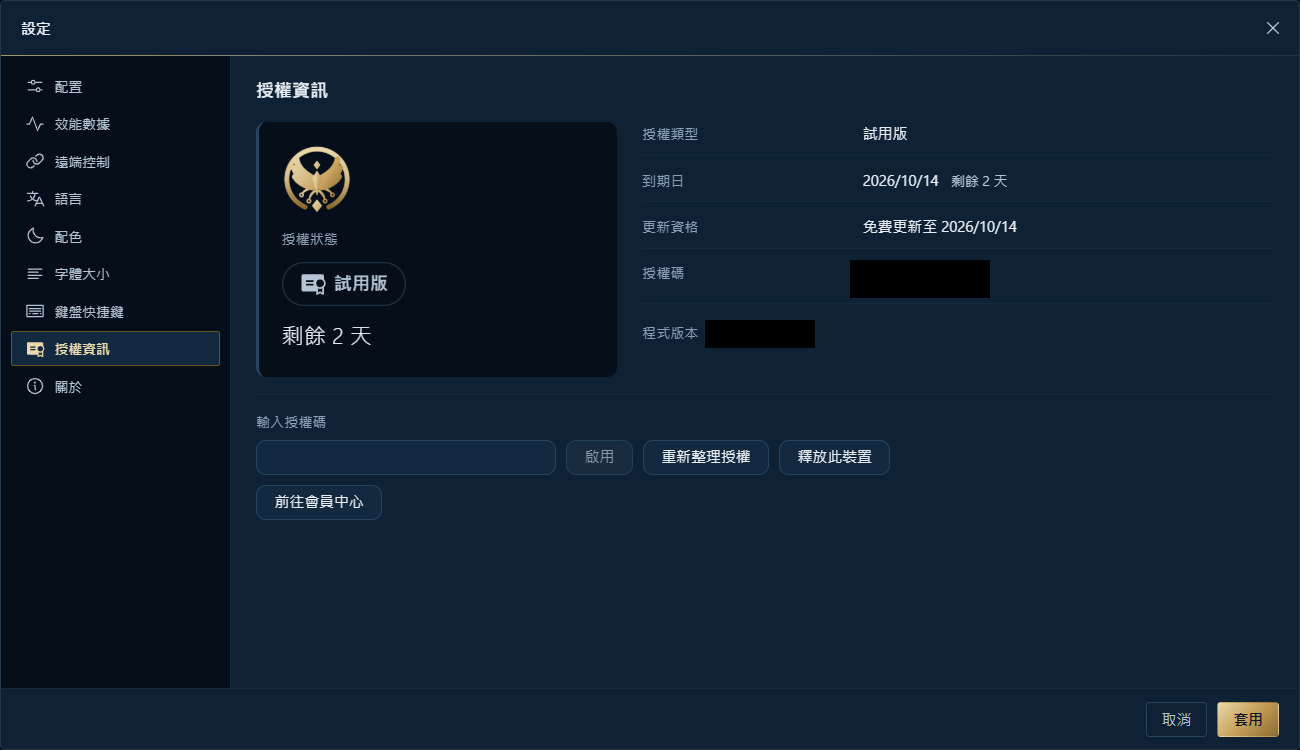
To change the key or check its status later, open Settings › Licence information at the bottom of the left sidebar.
3Get to know the screen
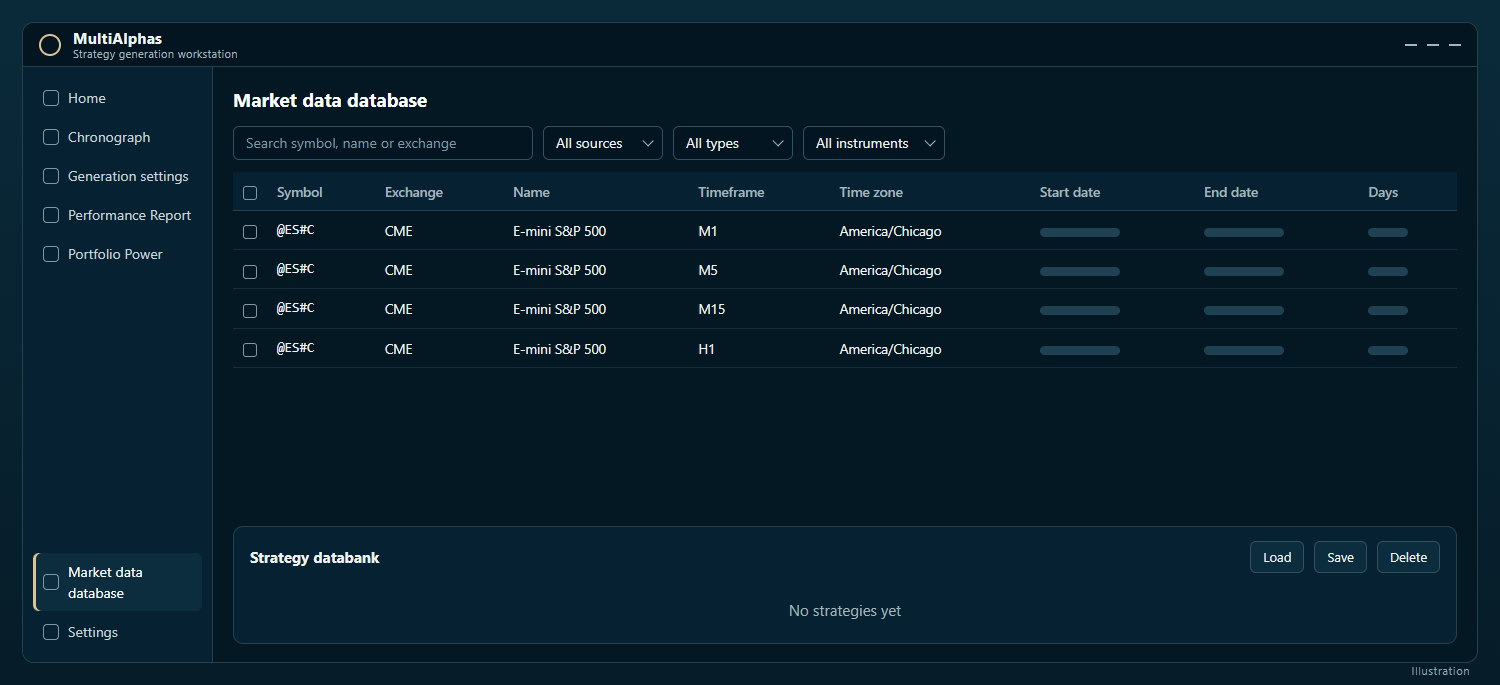
At the top of the left sidebar: Home, Chronograph, Generation settings, Performance Report, Portfolio Power and Feature Mix. At the bottom: Market data database and Settings.
Generation settings has six tabs across the top: Overview → Market → Rules → Blocks → Algorithm → Stage gates.
4Prepare data (example: E-mini S&P 500 futures, ES)
Historical market data is updated in Market data database and used for research and backtesting inside the software.
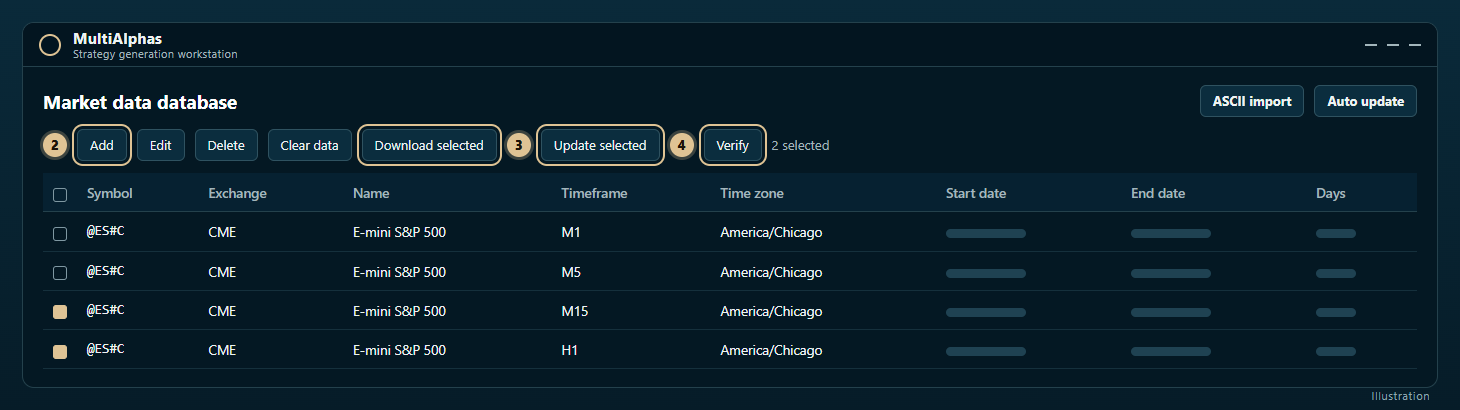
- Click Market data database in the left sidebar, then Auto update at the top right. The historical data in the software is brought up to date.

- To choose specific data, click Add, tick the instruments and timeframes you need, and click Download selected.
- To update data later, tick the rows and click Update selected.
- To check for gaps or duplicates, tick the rows and click Verify.
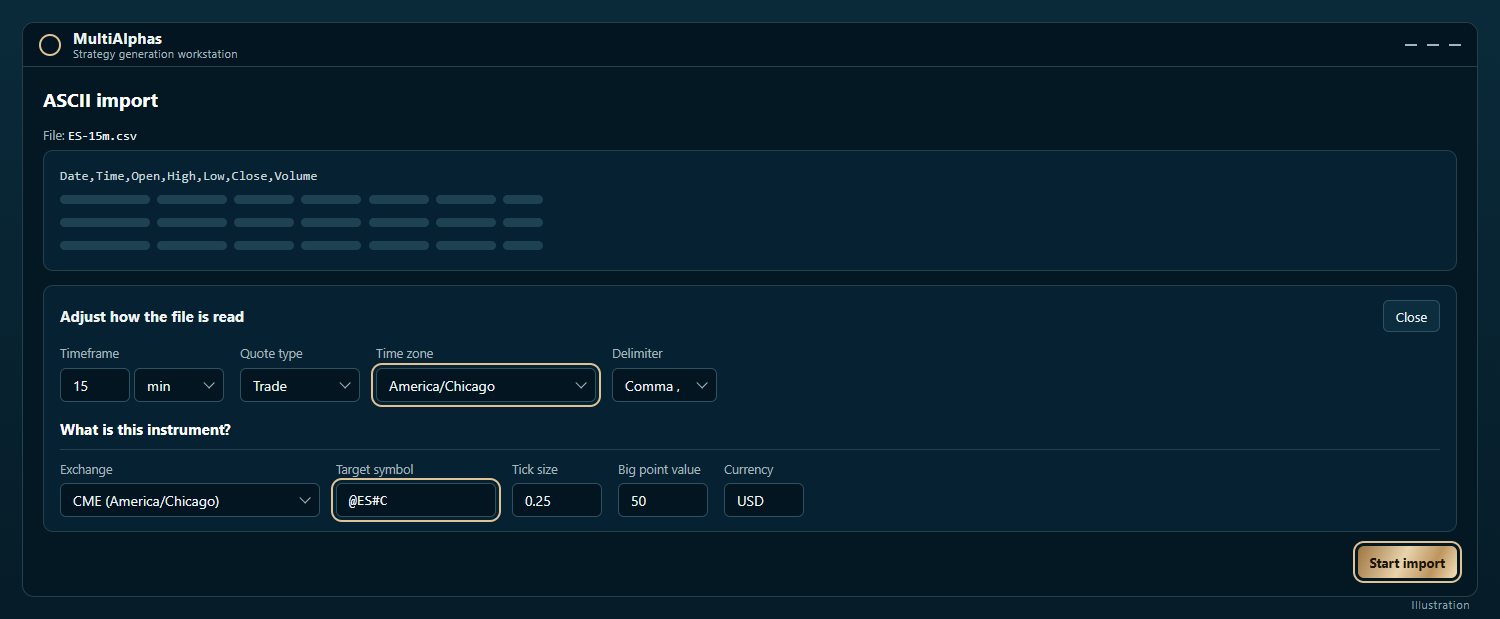
To use your own data, click ASCII import at the top right of Market data and pick your file. The import panel opens (click Adjust to change how the file is read). Under Which instrument is this choose the instrument. Under Adjust, set Time zone to the time zone the data actually belongs to. Click Start import; the file is checked automatically first.
5Choose data, set costs and define out-of-sample
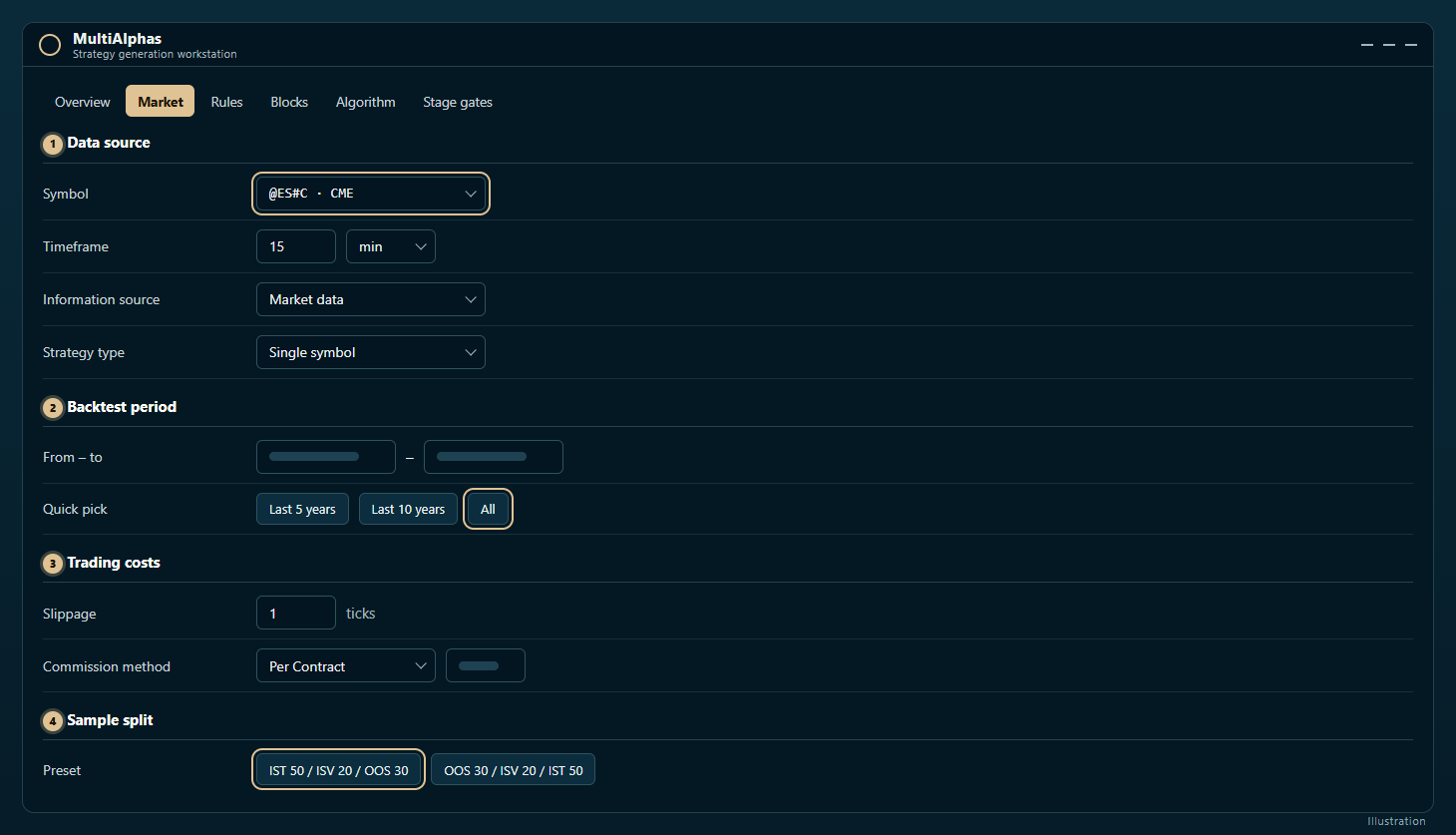
Go to Generation settings › Market:
- Choose the Symbol (ES here) and the Timeframe, for example 15 minutes. Under Data source, choose where the data comes from in Information source. Set Strategy type to Single symbol.
- Backtest period: enter a start and end date, or click All to use all the data.
- Trading costs:
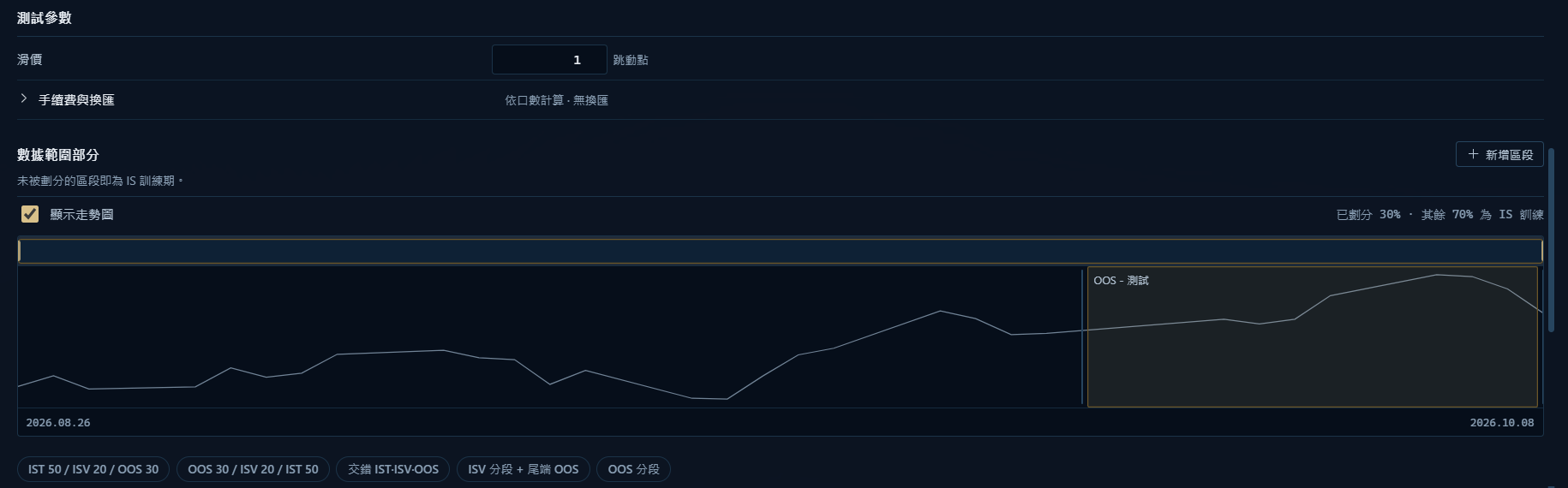
- Slippage: ticks per side, per contract.
- Set the Commission method and the amount.
- Sample split: preset buttons are provided, for example IST 50 / ISV 20 / OOS 30.
- IST: the data used to find strategies
- ISV: data used for validation
- OOS (out-of-sample): held back for the final check
The factory setting already reserves the last 30% as OOS; the remainder is the in-sample training period.
6Set trade direction, stop-loss and take-profit
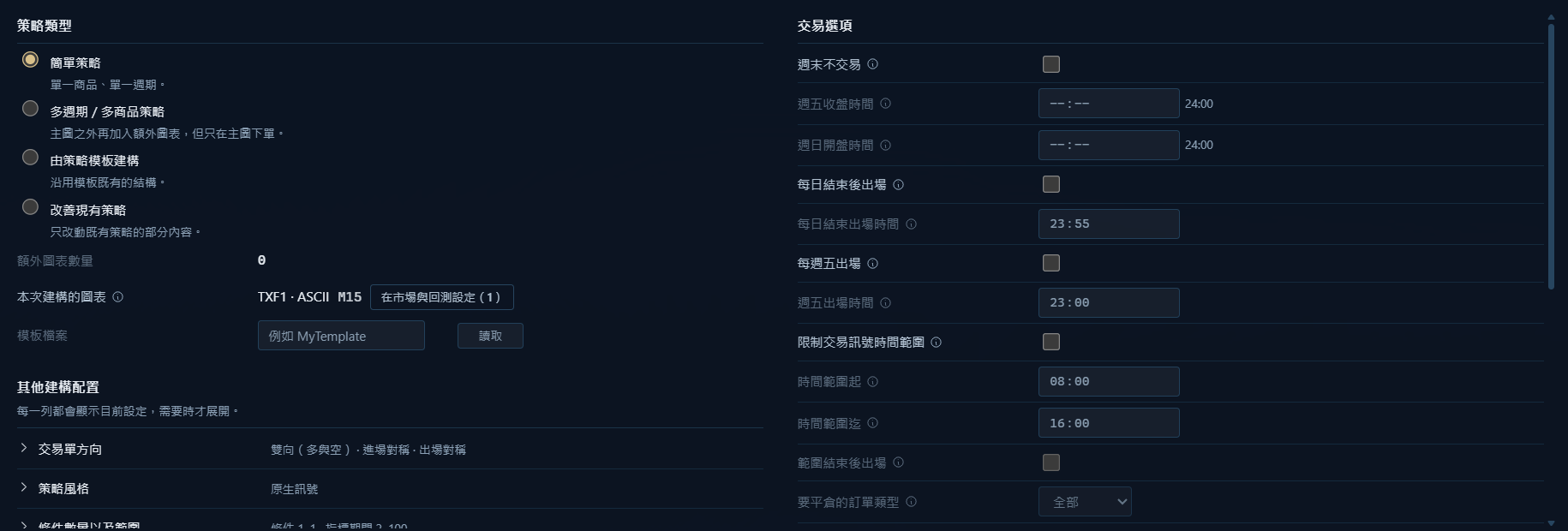
Go to Generation settings › Rules:
- Direction sets long, short or both. The stop-loss and take-profit ranges are set under Stops & targets on the same page.
- On the same page, Trading hours has Don't trade on weekends. Set Holding type to Intraday (flat at close) to close positions before the end of each day.
7Choose indicator conditions
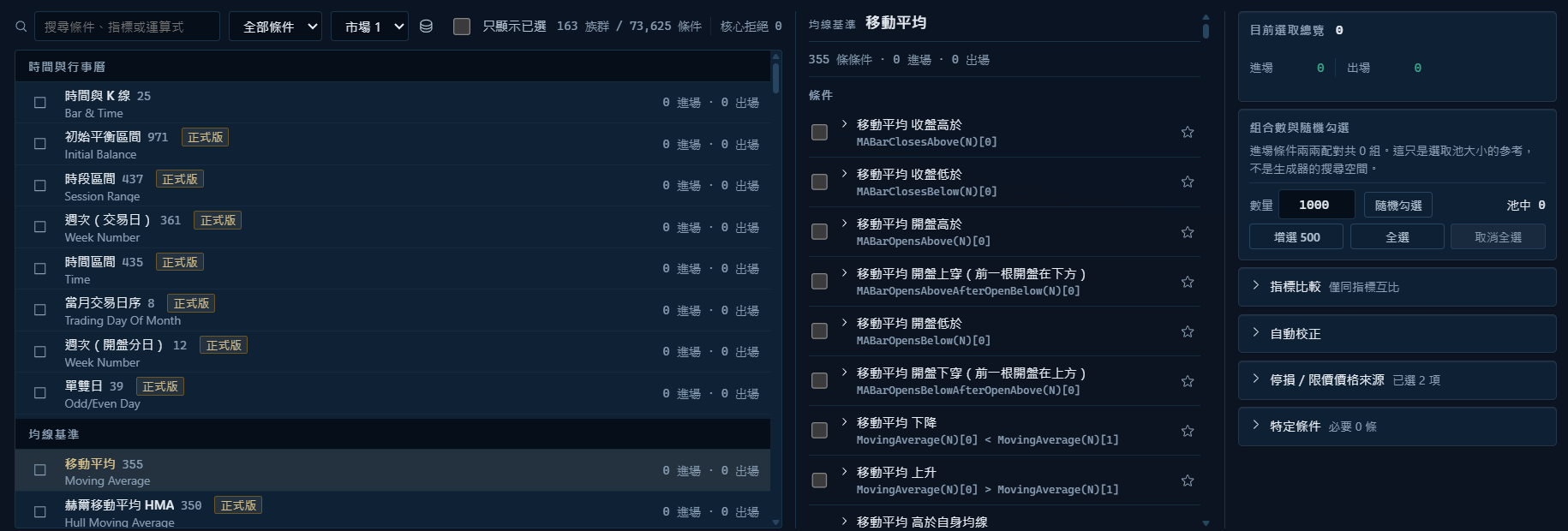
Go to Generation settings › Blocks:
- The list on the left shows the indicator families. Tick two or three that you know well.
- Leave the parameter ranges at the factory values for now.
The trial version can use 15 of the indicator families; families marked Full version are not included in the trial.
8Choose how to generate and what to keep
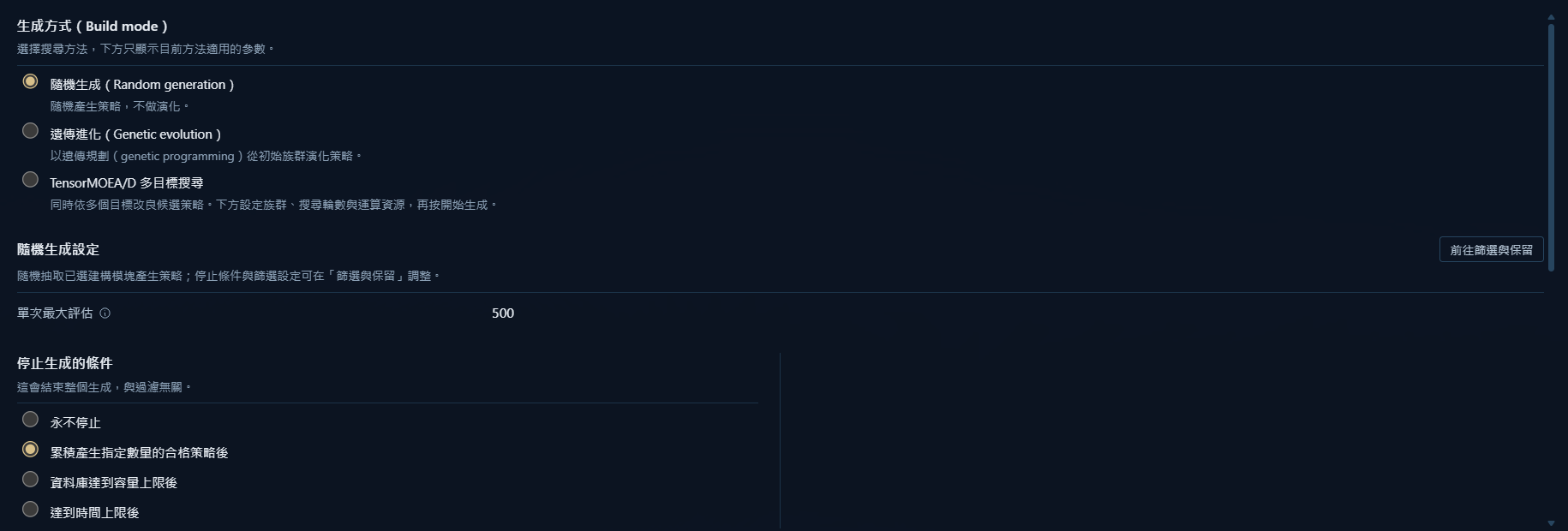
- Algorithm: under Search algorithm choose Random search and keep the factory parameters. Termination on the same page decides when a run stops by itself.
- Fitness function on the same page decides how strategies are ranked; which strategies are kept is set on the Stage gates page.
- Stage gates: set the checks that kept strategies must pass; walk-forward analysis is also set here. For the method, see Walk-forward analysis: why one backtest is not enough.
9Start generating
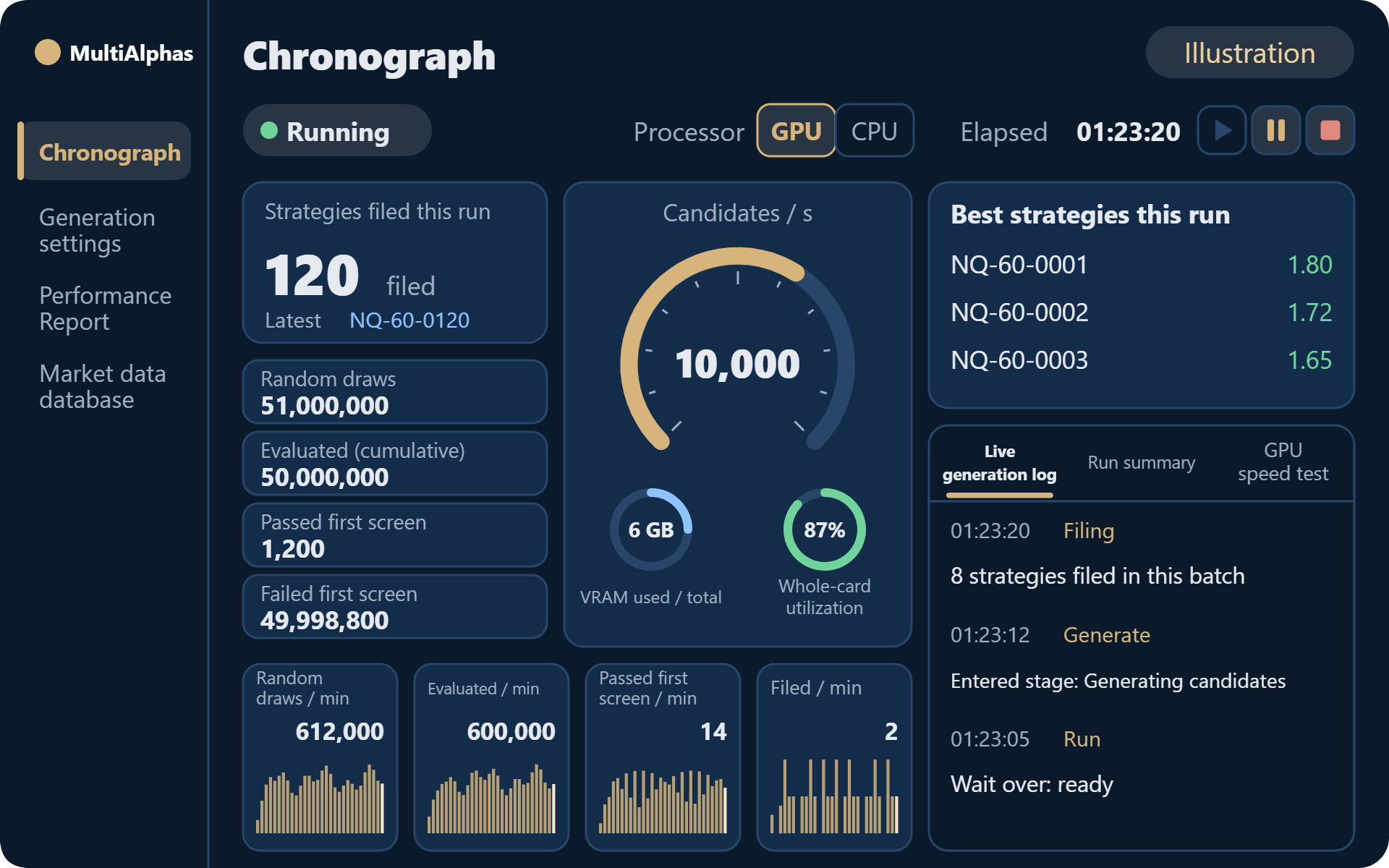
- Click Chronograph in the left sidebar.
- At the top right, choose GPU or CPU. If your computer has no NVIDIA graphics card, choose CPU.
- Click Start. While it runs you can Pause or Stop; after a pause click Resume.
- Best strategies this run lists the current top strategies. All strategies that pass the filters are stored in the Strategy databank at the bottom.
10Review the results
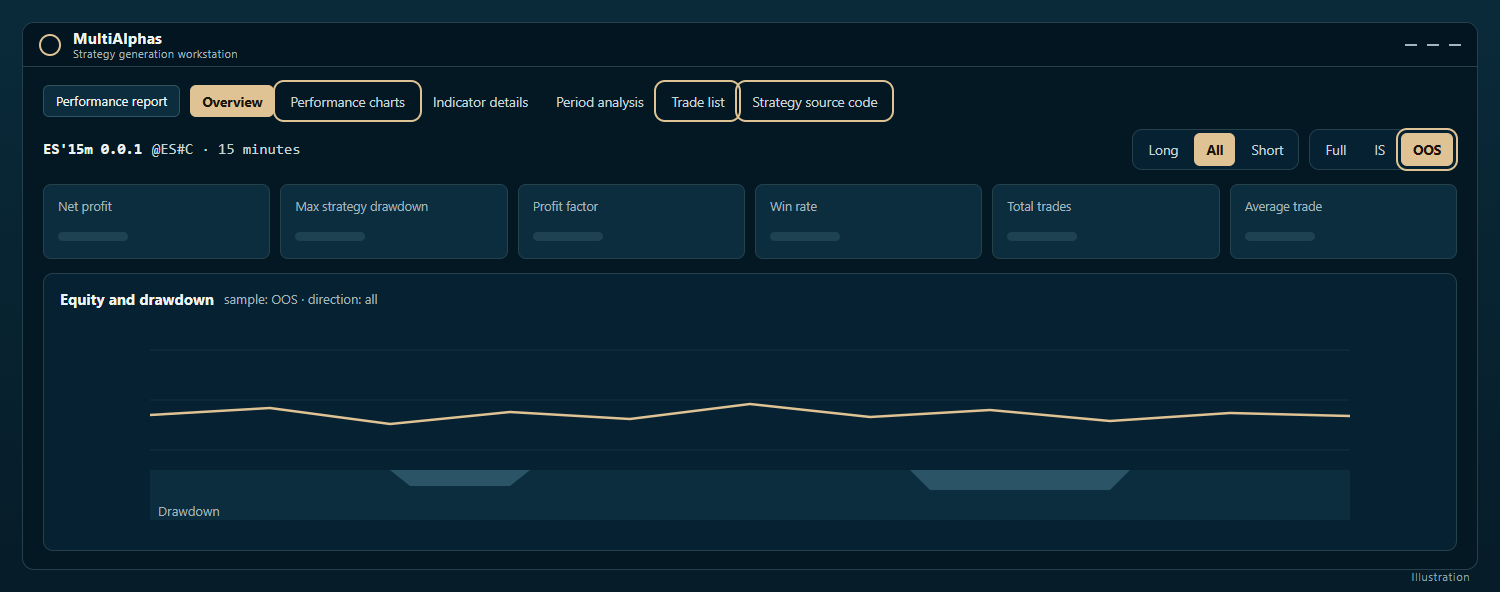
- Double-click a strategy in the Strategy databank at the bottom. It opens in Performance Report.
- Start with these three areas:
- Performance graphs: switch the sample to OOS and check whether the strategy holds up out of sample.
- Trades: check that each entry, exit and cost is reasonable.
- The left column of the Strategy Source tab: which conditions and parameters the strategy actually uses.
11Export to MultiCharts, TradingView, TradeStation, NinjaTrader, MetaTrader 4 or MetaTrader 5
MultiAlphas exports strategy source code to MultiCharts (PowerLanguage), TradingView (Pine Script), TradeStation (EasyLanguage), NinjaTrader (NinjaScript), MetaTrader 4 (MQL4) and MetaTrader 5 (MQL5); see export to your platform.
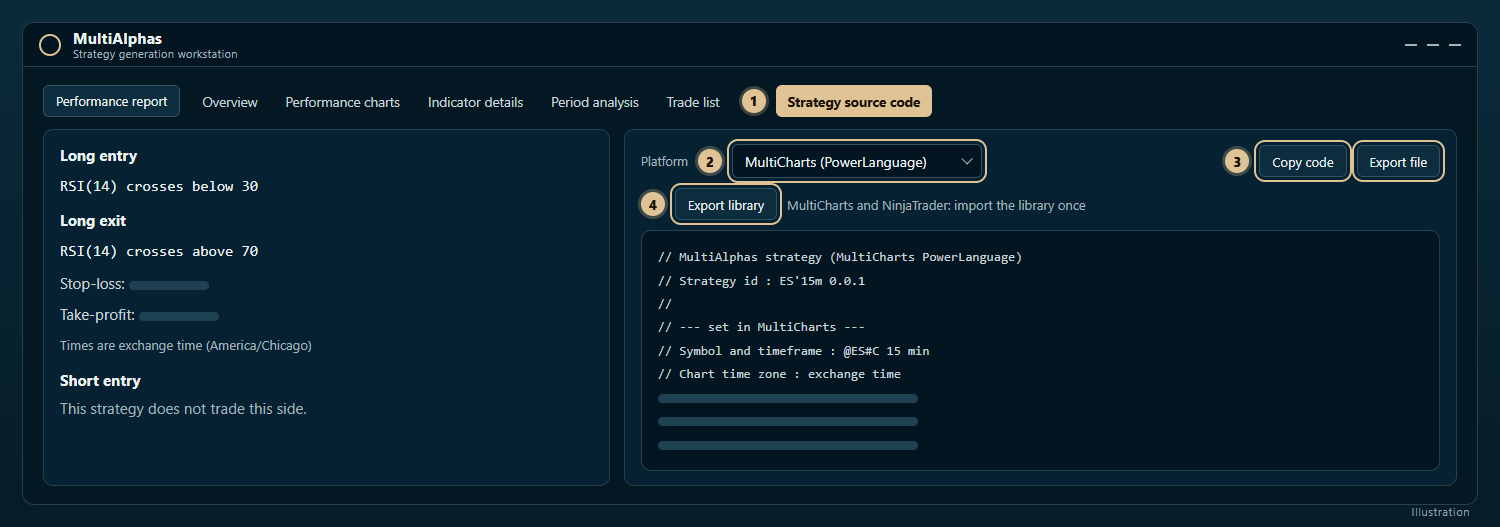
- In Performance Report, open the Strategy Source tab. The right column is the strategy's source code.
- Choose your platform: MultiCharts, TradingView, TradeStation, NinjaTrader, MetaTrader 4 or MetaTrader 5.
- Click Export file to save it as a file, or click Copy code.
- MultiCharts and NinjaTrader, before your first export: click Export function library and import it once in your platform's code editor. If MultiCharts asks whether to overwrite functions with the same name, choose Yes. Strategies exported afterwards will not compile without it. TradingView and TradeStation strategies need no library.
- Import the strategy into your platform and compile it. On TradingView, paste the code into the Pine Editor and add it to the chart.
- Follow the setup notes at the top of the source code to set the chart's time zone, commission, slippage and other settings.
- Before going live, compare the platform's trade list with MultiAlphas's on the same data. See From generated strategy to your platform: a comparison checklist.
Source code can also be viewed and exported in the trial version.
12Combine strategies with Feature Mix
Feature Mix takes the strategies you tick in the strategy databank, screens, groups and weights them into one combined strategy (a Feature), then backtests and checks it. You can save the result back to the strategy databank. Feature Mix can also be used in the trial version.
- Click Feature Mix in the left sidebar and tick the strategies to combine in the Strategy databank at the bottom. The Member strategies column loads them automatically and shows the count, date range and symbols. It reloads whenever your ticks change.
- The four steps are at the top of the page: Filter, Compose, Report and Save & load.
- Filter: set the Basics (fewest trades, lowest coverage, lowest annual volatility, de-duplication correlation), and add Leave out or Keep only rules if you need them. Save rules you reuse as Templates. The page shows how many strategies remain at each stage: all member strategies, past the basics, past my rules and after de-duplication.
- Compose: set the Grouping, Weighting and Run sections, then click Start build. You can also run one stage at a time with Group only, Weight only or Backtest only. Choose Preview or Official for the backtest. While it builds, a five-act animation plays (load and screen, correlation layout, grouping, weighting, backtest); you can turn it off. When it finishes, the final equity and closed lots are shown.
- Report: five tabs, Performance, Equity, By year / month, Group share and Checks. Performance shows the full, train and holdout figures side by side; Checks lists each check with its result, value and threshold.
- Save & load: enter a Name and an ID, then click Save to library. Saved Features are listed under Saved Features; click Load to open one. Tick Re-run and compare before loading to run it again and see whether the dates, consensus and target lots are identical to the saved version.
13Need help?
- Field help: hover over the ⓘ icon next to a field.
- Support: multialphas.com/en/support/
- If any step does not work as expected, write to support@multialphas.com and we will guide you through it.
MultiAlphas is a software tool for strategy research. It is not investment advice and does not guarantee profit; backtest results do not represent future performance.