

How to export TradingView chart data to CSV and generate on it
Export chart data from TradingView's chart menu as a CSV, then drag the file onto the MultiAlphas window: symbol, timeframe, exchange, time zone and contract specification are read from the file name and MultiAlphas's own instrument table, the market is joined to TradingView's latest bars and kept up to date, and it is ready for strategy generation at the file's own timeframe.
By Soren Huang · Published · updated · Editorial policy
Contents
How do you export chart data from TradingView?
Export chart data writes the bars loaded on the chart to a CSV, and that file is all MultiAlphas (Valynox) needs: drop it on the MultiAlphas window and the market imports itself. Three stages: export, drop, then generate. The same three for futures and forex.
- Open the chart of the symbol and the timeframe you want to generate on.
- Scroll the chart back until the bars you want are loaded.
- Open the chart layout menu: the arrow beside the layout name.
- Choose Export chart data….
- Press Export.
The file is named after the exchange, the symbol and the bar size in minutes: CME_MINI_ES1!, 60.csv for the ES 1-hour chart, FX_EURUSD, 60.csv for EURUSD at 1 hour, CME_MINI_NQ1!, 240.csv for NQ at 4 hours. Keep that name as TradingView wrote it, commas and all: MultiAlphas reads the symbol, exchange and timeframe from it.
How do you import the CSV into MultiAlphas?
Drag the CSV onto the MultiAlphas window, on the Market Data page or any other page. A small window titled with the file name opens and the import runs by itself: symbol, timeframe, exchange, time zone and contract specification are read from the file name and MultiAlphas's own instrument table, which covers CME-group futures, forex and the futures of many other exchanges, TAIFEX, OSE, SGX and HKEX among them. The window ends with one line: "Imported 10,844 bars: ES, 2025-01-01 to 2026-11-03."
The first time, the window shows Connect TradingView: press it, sign in once in the browser, and the import runs. With the connection, MultiAlphas joins the chart's history to TradingView's latest bars, checked bar by bar where they overlap, and keeps the market up to date by itself while it is open, every hour by default. From then on, updates need nothing from you.
When MultiAlphas asks for a future's point value, the same window shows one field, Big point value, with its currency: type it and press Import. Futures backtesting done right: specs, rollover and tick value explains what that number is.

The run behind the screenshots is an ES 1-hour file in TradingView's export format:
Our import run · MultiAlphas CSV import · ES 60 min · 2025-01-01 to 2026-11-03 · run on 2026-11-03
10,844 bars written, every bar matching TradingView's. Symbol ES, exchange CME, 60 min, bars from 2025-01-01 to 2026-11-03.
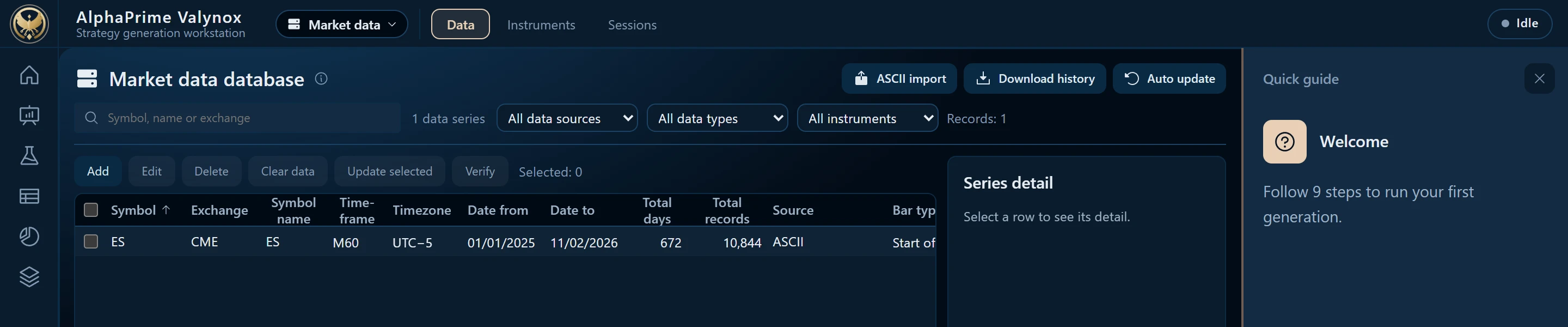
The market is now in the Market Data list as ES on CME at 60 min, 2025/01/01 to 2026/11/02, 10,844 records.
How do you start generating on the imported market?
Open Generation Settings, go to Market Data, and choose the imported market; the timeframe comes up as the file's own, 60 min for the ES file. Start the run. From here the file is market data like any other series in the library, and the strategy generation page shows what a run searches through and how it scores the candidates. To generate on another timeframe, export that chart too and drag it in as a second market.
The ES contract behind the example, its hours and its tick, is covered in S&P 500 futures explained: ES vs MES, hours and backtest setup, and if backtesting itself is new, what backtesting is: rules replayed on old prices, costs in is the page to start from.
Export the chart you already trade from, at the timeframe you read it on, and drag it in.
Frequently asked questions
UNIX timestamp or ISO time: which export format should I choose?
Either one. MultiAlphas reads both and takes the time column as the bar time; the format is detected. A UNIX timestamp is a count of seconds, ISO time is the date and time as text, and each bar lands at the same time in the exchange's time zone.
What happens to the indicator columns in the file?
They are ignored. A chart with a moving average on it exports one extra column per indicator, and the bars are written from time, open, high, low, close and Volume.
Do forex exports import the same way?
Yes. Drag the file in the same way. FX_EURUSD, 60.csv is imported as EURUSD on forex, and the timeframe, time zone and contract specification come from the file name and the instrument table, as for ES.
Can I generate on two timeframes of the same symbol?
Yes. Export the chart at each timeframe and drag each file in; each becomes a market of its own at its own timeframe, and Generation Settings lists both. The file name carries the bar size, 30 for 30 minutes, 60 for 1 hour, 240 for 4 hours, so the two stay distinct.